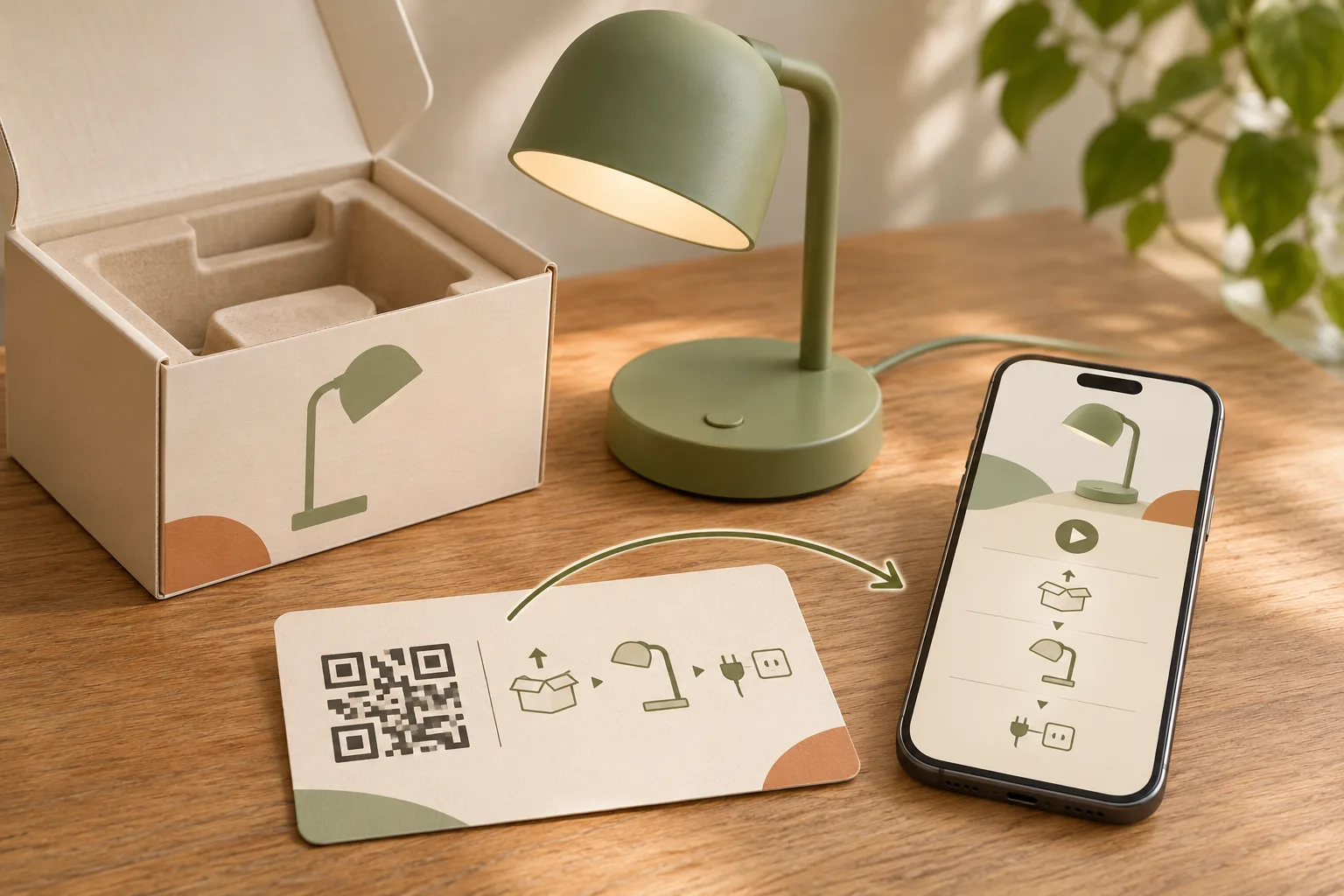
A customer opens a box, finds a small instruction leaflet and searches your website for a clearer guide. Two products look almost identical, but their setup steps are different. A QR code is useful here only if it takes that customer to the right instructions for the product in their hands.
This guide explains how to connect packaging and quick-start cards to a useful manual, setup video or product help page. The desk-lamp example below is fictional; it illustrates how to organise information, not how to assemble a real product.
The short answer: prepare a mobile-friendly guide for one product model, make it accessible without an account, and create a QR code that opens it. Save the code, test a printed sample and keep a record of which packaging uses it. When instructions change, update the same saved QR or the page it opens, while preserving the correct guidance for older models.
1. Choose what the scan should open
Start with the customer's next question, not the QR design. If they need one short manual, a PDF may be enough. If they need a video, written steps and help from your team, a focused product page can bring those options together.
On a phone, swipe the table sideways to see every column.
| Destination | Best fit | Check before publishing |
|---|---|---|
| PDF manual | A short guide that customers can view or download. | Readable text on a phone, a clear model name and a visible version date. |
| Setup video | A process that benefits from seeing the product in use. | The correct model, useful captions and a written alternative. |
| Product help page | Several useful resources: quick start, full manual, video and support. | A clear first action, working links and no distracting sales journey. |
The PDF QR guide explains uploaded documents and file replacement. For several resources on one page, see our guide to QR codes for multiple links.
2. Match the guide to the product in the box
Put the model name or number near the top of the destination and inside each downloadable manual. Add the document's revision date. A customer should be able to compare those details with the product or packaging before following the guide.
Keep a simple internal record of the model, guide address, saved QR name and packaging artwork that uses it. Two models can share a guide only when the instructions genuinely apply to both. A generic homepage makes customers search again; a guide for a newer but incompatible model is worse.
3. Build a small help page with a clear order
Imagine a fictional desk lamp called Example Light L1. Its help page could offer the following, in this order:
- Start here: a short introduction that identifies the model and links to its approved quick-start instructions.
- Read the full guide: a clearly labelled PDF, with its language and revision date beside the link.
- Watch the setup video: a demonstration for that same model, with captions and an accompanying written guide.
- Get help: a support link that tells customers which model information to have ready.
This page does not need a newsletter form, a catalogue of unrelated products or an account-creation step before the instructions. Keep it focused on helping someone use what they already bought. Keep essential printed information and a support address available for customers who cannot scan or get online.
4. Create the QR, then test the complete journey
- Prepare the destination. Open every resource while signed out. Remove private comments and internal documents from the public version.
- Choose the QR type. In CreateQR, use a PDF QR for an uploaded manual, or a link QR for a help page you already maintain. Give the saved QR a clear name that includes the model.
- Save before downloading. Finish the save flow and download the saved code. Do not send a screenshot of a builder preview to your packaging designer.
- Print a sample at its intended size. Test the actual card or packaging layout, with its final colours, background and surrounding space.
- Check the result on more than one phone. Use iPhone and Android where available, mobile data as well as Wi-Fi, and a signed-out browser. Confirm the model, document revision, video and support link—not just that a page opens.
Ask a colleague who did not build the page to find the right instructions. Their first hesitation often reveals a label or layout that needs work. Use our pre-print QR testing checklist before ordering a larger batch.
5. Put the code where it will still be useful
A box is useful during unboxing, but customers may discard it. Consider repeating the same QR on the quick-start card or another suitable, lasting location. Choose a flat, visible area; avoid folds, seams and places where the printed pattern is likely to be covered.
Use a specific label such as “Scan for the L1 setup guide” rather than “Scan me.” Add a short, readable web address as an alternative. Keep the pattern sharp, the contrast strong and the surrounding clear space unobstructed. Test again after the final artwork or material changes.
6. Update instructions without losing the model history
For an uploaded CreateQR PDF, open the existing saved QR, replace the document and save the change. For a QR that opens your website, update the page at the same address or change the destination of the existing dynamic QR. Creating a separate QR does not update codes that are already printed.
A static QR can also keep working when you replace content at an address you control. The important distinction is whether the encoded address itself needs to change. Our static versus dynamic guide explains that choice.
Do not redirect an older model's packaging to a newer model's instructions unless they are compatible. Keep earlier guides available where needed, label revisions clearly, and scan an original printed code after every change. Continued access also depends on working hosting, links and, for managed dynamic codes, the service and account remaining active under their terms.
7. Measure use without guessing what happened next
Scan activity can help you see whether a code is being used. It does not prove that someone read the manual, completed setup or no longer needs support. Repeat scans and your team's tests can also contribute to the count.
Combine scan trends with the questions your support team receives. If people keep asking which manual to choose, make the model label clearer. If they cannot find the first step, simplify the landing page before adding more content.
Common questions
Does the QR code contain the whole manual?
In this workflow, it contains an address that opens a file or page online. Customers need an internet connection to open it. A previously downloaded manual may be available offline, but the QR itself does not store the document.
Can we change the manual after packaging is printed?
Yes, if you maintain the same destination address or update the existing dynamic QR. Replace the correct model's resource and test an original printed copy. Do not create a new saved QR and expect older packaging to follow it.
Can one QR offer instructions in several languages?
Yes. A product help page can link to clearly labelled language versions. Review each version against the same model and document revision, and keep language selection easy to find. The QR does not translate a manual by itself.
Can we use one QR for several products?
You can link to a model-selection page, but customers must be able to identify their product reliably. A dedicated guide for each model is often clearer. Keep names and images distinct, and test the selection with someone unfamiliar with the range.
Ready to organise your product instructions? Explore CreateQR's QR code types, choose the destination that answers your customer's first question, and test it before it reaches the box.
Feature image: AI-generated editorial illustration.