The Wi-Fi password is in a message. The checkout time is in another. The instructions for the heating are somewhere in the folder by the TV.
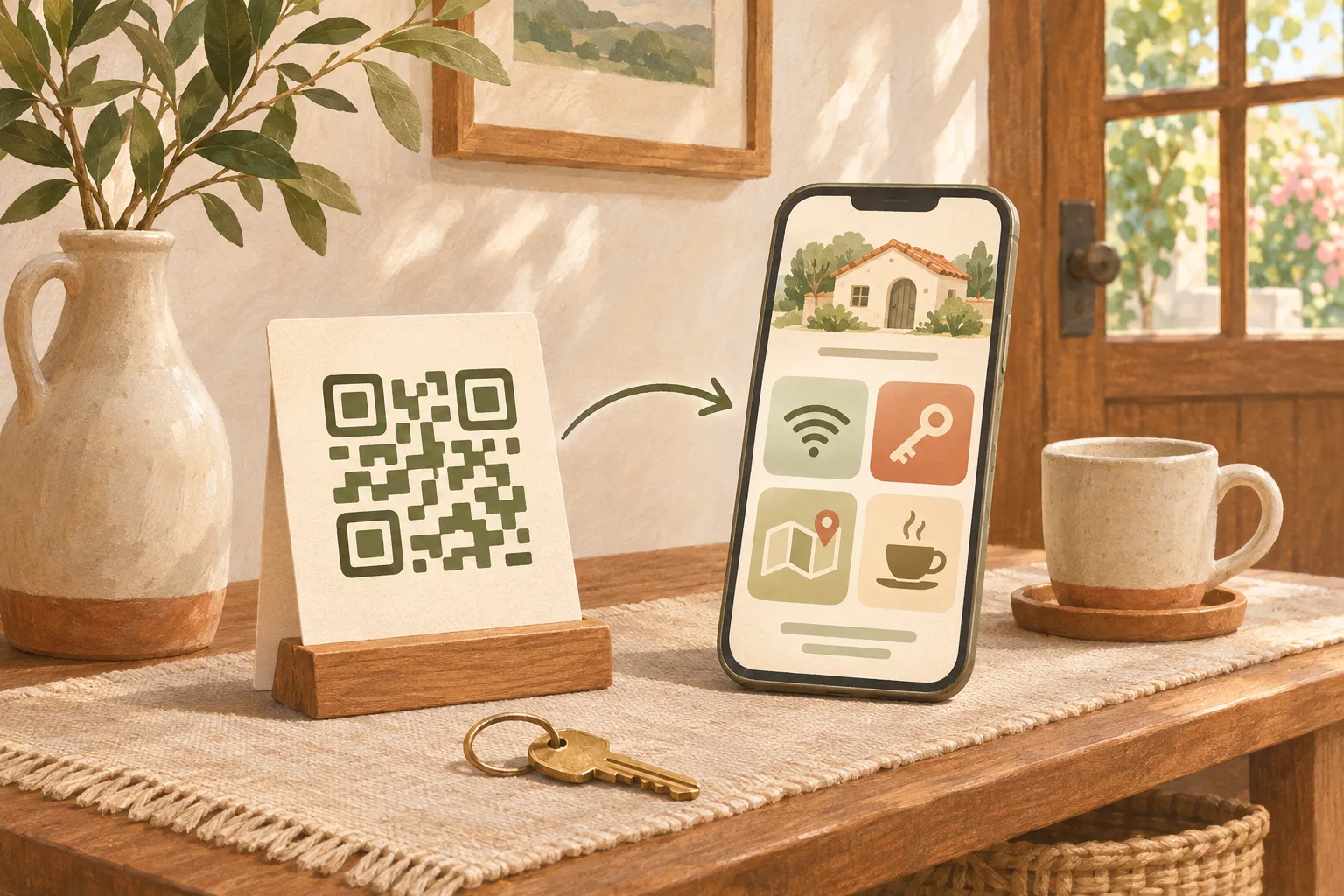
A welcome-guide QR code can put those answers in one place. Guests scan a small card and open a page with the details they need for their stay. The useful part is the guide itself: short, easy to read on a phone, and specific to the property they have just arrived at.
Here is how to put one together without turning it into a twenty-page brochure.
Start with the questions you keep answering
Look through your recent guest messages. Which questions come up more than once? Those belong near the top of the guide.
For a small holiday rental or guesthouse, a sensible starting order is:
- Getting connected: where to find the guest Wi-Fi details.
- Getting settled: parking, heating, hot water and the few appliances that need an explanation.
- Getting help: the best way to contact the host or reception.
- Leaving: checkout time and where to return the key.
- Going out: a small selection of places nearby.
Keep the essentials ahead of the local recommendations. Someone trying to connect a laptop should not have to scroll past six restaurant photos to find the network name.
Write labels as your guests would say them. “How to turn on the heating” is easier to recognise than “Climate control information.” A clear photo of the actual control panel can help more than a long paragraph about it.
Give the first screen one job
The first screen should help someone find an answer. Use the property name, a short welcome and a handful of clearly labelled sections or links.
This is a sample structure you can adapt; replace the bracketed details with your own:
Welcome to [property name]
Make yourself at home. Here are the useful bits for your stay.
- Wi-Fi: [where to find the guest network details].
- Parking: see the photo showing your space and how to reach it.
- Need a hand? contact us through [your usual guest contact channel].
- Checkout: by [time]. Leave the key [agreed location].
- Nearby: our picks for breakfast, groceries and a rainy afternoon.
Keep the welcome warm and brief. Save the detailed appliance instructions for their own section, where someone can find them when they need them.
Choose a page or a PDF you can keep up to date
If you already have a useful welcome page on your website, link to that. A web page is a good fit for short sections, contact buttons and map links. Open it on your own phone and check that nothing needs awkward zooming.
A PDF works too, especially if you already keep a printed guide in the property. Use a simple single-column layout, readable text and working links. A beautiful landscape booklet can be frustrating on a narrow phone screen.
In CreateQR, choose a Link QR for an existing page or a PDF QR for an uploaded guide. Give it a name you will recognise later, such as “Garden apartment — welcome guide.” Finish saving it, then download the saved QR for your card. Our PDF QR guide covers the document option in more detail.
Keep the guest journey simple. If the guide asks visitors to sign into your personal cloud account, fix that before printing. Test the link in a private browser window so you see it as a guest would.
Keep access codes out of a public guide
A QR code on a card inside the property can still be photographed, and its destination link can be forwarded. Do not treat that link as private just because you have not advertised it.
Keep door codes, alarm codes and guest-specific information in your established private communication channel. Use the public guide for everyday instructions and local information. Decide separately how you want to share guest Wi-Fi credentials; you can keep them on a card inside the property rather than on the public page.
If you use Airbnb, its built-in house manual has a different access model: Airbnb says only guests with a confirmed reservation can access it. That does not apply to a separate public page you link from a QR code. See Airbnb's house manual guidance for the distinction.
Use the guide to explain the arrangements guests already agreed to. Keep checkout details consistent with your booking information instead of adding surprise requirements after arrival.
Put the card where a guest will notice it
A small card on the entry table or beside the printed welcome folder is a useful starting point. Label it with a reason to scan: “Your stay: Wi-Fi, local tips and checkout” tells people more than “Scan me.”
Print a sample at the size you intend to use. Scan it in its actual position, including in the evening. Check for glare from a frame or glossy sleeve, and leave clear space around the QR pattern. Try a second phone if you have one.
Then follow the links. Does the parking photo show the correct space? Does the contact button work? Is the checkout time the same as the one in your booking message? Our pre-print testing checklist is useful here.
Leave a short printed version of the essentials too. A guest may arrive with a flat battery or no mobile data. In particular, do not make an online guide the only way to find the information needed to get online.
Update the guide, not the whole welcome card
When the parking arrangement changes or a favourite café closes, update the resource behind the code. If your QR opens a page you control, edit that page while keeping its address. For a saved dynamic QR, update the destination or replace the uploaded PDF within that same QR.
Creating a new QR will not update the card already on the table. Keep a copy of the printed card and scan it after each change. For the difference between editing a destination and replacing a code, read our static and dynamic QR guide. Keep the guide online so the printed card keeps working. If you use a managed QR service, keep that active too.
As guests use the guide, pay attention to what they still ask. If everyone asks where to park, move that answer higher up or replace the description with a clearer photo. Scan counts can show activity, but they do not tell you whether someone found the answer.
Start with one property, one card and a short guide. You can add more later. The best first version is the one that answers the next guest's questions clearly.
Create a QR code for your welcome guide.
Feature image: AI-generated editorial illustration.