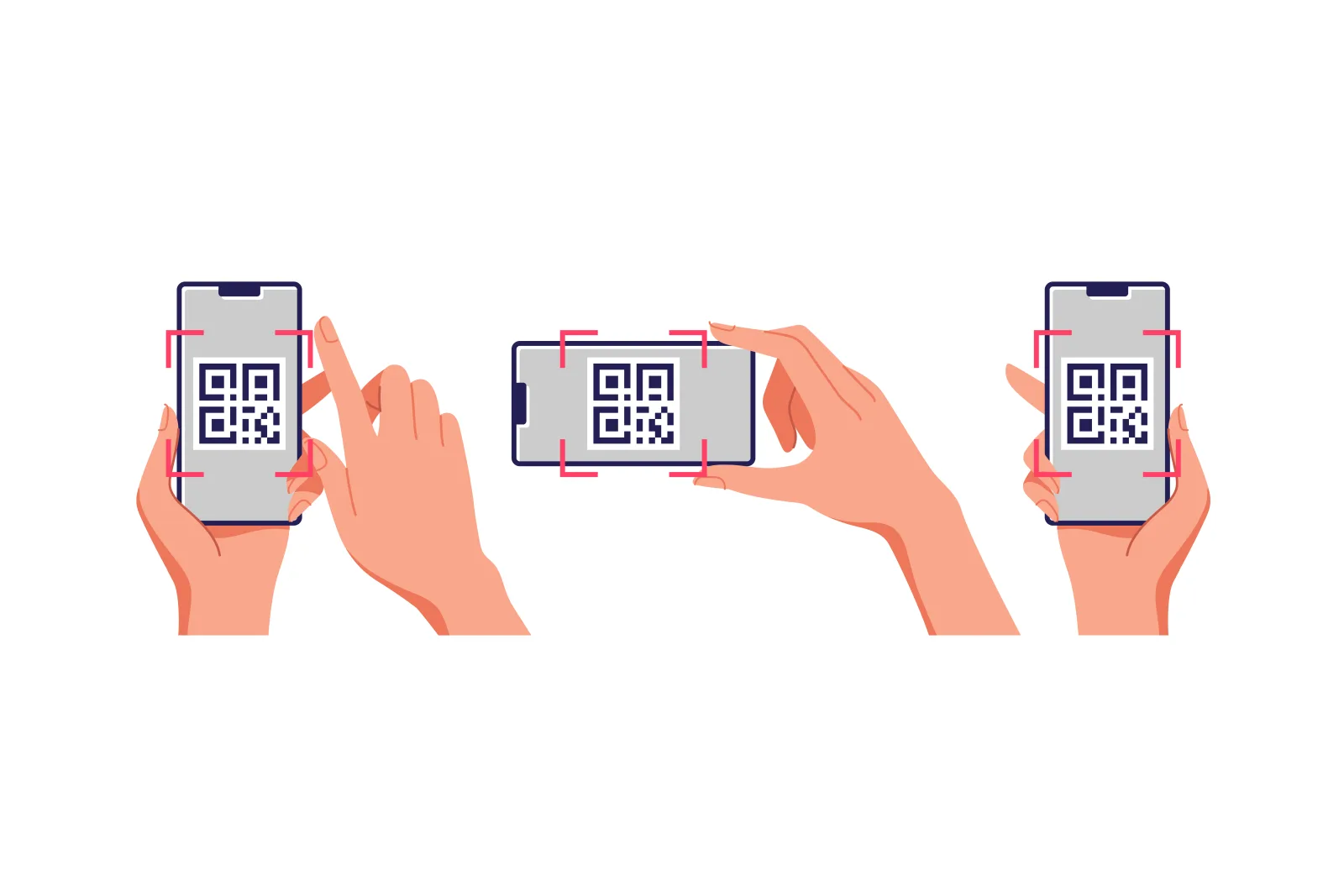
A QR code can fail in more than one way. Sometimes it does not scan at all. Sometimes it scans only on certain phones. Sometimes it scans perfectly but opens the wrong page, a broken link, or a destination that no longer matches the printed message next to it.
That is why fixing a QR code starts with one simple question: what exactly is failing? Is the camera struggling to read the code, or is the problem happening after the scan? Once you know that, the fix becomes much easier.
Quick answer: Most broken QR codes fail because of one of four things: poor contrast, bad sizing or print quality, over-styled design, or a broken or outdated destination. Start by testing the printed QR code on multiple phones, then check the design, print conditions, and landing page behind it.
First, check: are you scanning a QR code or did you create one?
The cause of a QR code not working changes depending on whether the problem is the scanning environment or the QR code itself.
I’m trying to scan a QR code
Start by checking lighting, distance, angle, camera lens, and phone settings.
See the fixesI created or printed the QR code
Check size, contrast, quiet zone, destination, and print quality. If needed, recreate a QR code that is easier to scan.
Create a QR code that scans reliablyWhat “not working” usually means
Before you troubleshoot, it helps to identify the exact kind of failure you are dealing with. Most QR problems fall into one of these three groups:
| Problem | What it usually means | First thing to check |
|---|---|---|
| The code does not scan | The camera cannot read the QR pattern reliably | Contrast, size, quiet zone, glare, print quality |
| The code scans only sometimes | The QR is borderline readable and conditions make the difference | Lighting, angle, device differences, glossy or curved surface |
| The code scans but opens the wrong or broken page | The destination behind the scan is outdated, broken, or mismatched | Destination URL, redirects, deleted files, static vs dynamic setup |
Simple rule: A QR code can fail before the scan or after the scan. Fixing the wrong side of the problem wastes time.
Quick diagnosis before you change anything
Before you redesign or reprint the QR code, run a few quick checks. These can tell you whether the issue is the code, the destination, or the environment.
- Scan the same QR code on at least two different phones
- Try the code in better light and from a slightly different angle
- Open the destination URL directly if you know it
- Check whether the same QR works on screen but fails in print
- Check whether the code is static or dynamic
- Look for glare, blur, damage, or a crowded design around the code
Helpful shortcut: If the QR code scans from the original digital file but not from the printed piece, the problem is usually print quality, material, size, contrast, or placement.
What type of QR code problem do you have?
- It does not scan after printing
- It only scans on some phones
- It scans but opens the wrong page
- It became harder to scan after adding a logo or colors
- You want to change the destination after printing
If the QR code you created or printed has a problem, check size, contrast, quiet zone, and destination. Creating a new QR code can sometimes be the fastest fix.
Create a QR code with fewer scan issuesThe 15 common fixes
Start with the simplest fixes first. Many QR problems are easier to solve than they look.
1. Increase the contrast
Use a dark foreground on a light background. Low-contrast combinations are one of the most common reasons a QR code will not scan reliably.
2. Restore the quiet zone
Leave clean blank space around the QR code. If text, borders, icons, or background graphics crowd the edges, many phones struggle to detect the code properly.
3. Make the QR code bigger
A code that is too small for the scanning distance often fails even when the design looks fine. This is especially common on packaging, flyers, and posters.
4. Reduce data density
Very dense QR codes can become hard to print and hard to read at small sizes. A shorter URL or a dynamic QR setup can often make the pattern cleaner.
5. Remove excessive styling
Oversized logos, extreme module shapes, decorative corners, or weak color choices can turn a stylish QR into a fragile one. Simplify until the scan becomes reliable again.
6. Export a sharper file
A low-quality raster image can become blurry in print. Use a cleaner source file and avoid stretching a tiny image into a larger layout.
7. Avoid glossy or curved surfaces
Reflection and distortion can break an otherwise fine QR code. Bottles, jars, laminated cards, and shiny labels often need larger sizes and cleaner contrast.
8. Improve lighting and reduce glare
A QR code that works in the office can fail on a dim restaurant table or under a bright reflective light. Test it where customers will actually scan it.
9. Reposition for easier scan angle
A code placed too low, too high, or at an awkward angle is harder to scan. Sometimes moving the print location improves performance more than redesigning the code.
10. Replace damaged or low-quality print
Scratches, folds, smudges, fading, and poor ink output can make a QR unreadable. If the print itself is compromised, a clean replacement is often the only fix.
11. Check that the destination still exists
If the QR scans but opens nothing useful, the problem may be a deleted page, moved file, broken PDF link, or expired domain.
12. Fix outdated URLs and redirect paths
A static QR code tied to an old URL can often be saved only if you still control that URL path and can update or redirect it server-side.
13. Update the destination behind a dynamic QR
If the QR code is dynamic, you can usually keep the printed code and change the landing page, PDF, menu, offer, or campaign link behind it.
14. Replace static QRs when fixed content changed
Wi‑Fi details, fixed vCards, plain text, or static destinations usually need a new QR code when the underlying information changes.
15. Fix the landing page, not just the scan
A QR code can be technically perfect but still “not work” in practice if the destination loads slowly, breaks on mobile, or no longer matches the printed promise.
Most common pattern: the scan issue is often a mix of small problems rather than one dramatic mistake. A slightly small code, on a slightly glossy surface, with slightly weak contrast can already be enough to cause trouble.
Do you need to recreate your QR code?
If size, contrast, quiet zone, or destination is the issue, creating a new QR code may be faster. With CreateQR, you can quickly create QR codes for websites, PDFs, menus, and campaigns.
When you need a new QR code vs when you can keep the same one
Not every problem requires a full reprint. Sometimes the printed QR can stay, and sometimes it really cannot.
| You can often keep the same printed QR when: | You usually need a new QR when: |
|---|---|
| The QR is dynamic and only the destination changed | The QR is static and the encoded content changed |
| The old URL still exists and you can redirect it | The printed code is damaged or badly printed |
| The page content changed but the path can stay the same | The printed CTA now promises the wrong thing |
| Only the landing-page content needs updating | The design itself is too fragile to scan reliably |
If the problem is editability after print, related guides include Can You Change a QR Code After Printing? Yes—Here’s How and Static vs Dynamic QR Codes: Which One Should Your Business Use?.
How to prevent the problem next time
The easiest QR fix is the one you never need. A few habits prevent most failures before the code ever reaches customers.
- Test the final printed version, not only the on-screen preview
- Use strong contrast and protect the quiet zone
- Choose a physical size that matches the real scan distance
- Use a dynamic QR code when content may change later
- Keep the landing page fast, mobile-friendly, and live
- Do not over-style the code without testing it on multiple phones
- Recheck long-running QR placements every so often
- Match the printed CTA text to the real destination after the scan
| Do this | Avoid this |
|---|---|
| Test on at least two phones | Assuming one successful scan means the job is done |
| Use dynamic when future changes are likely | Printing static codes for changing campaigns |
| Keep the destination live and maintained | Letting pages, PDFs, or domains disappear |
| Print with enough size and contrast | Using the smallest possible QR to save layout space |
| Keep the design clean and readable | Treating the QR as decoration first and function second |
Common mistakes to avoid
- Checking only the design file and never the final print
- Using low-contrast brand colors because they look cleaner
- Adding too much styling without retesting scan reliability
- Printing a QR code too small for posters, tables, or packaging
- Ignoring glare, curves, or texture on the print surface
- Leaving a broken page or deleted file behind a working QR scan
- Using static QR codes for content that changes often
- Assuming the QR code is broken when the landing page is the real problem
The most common QR failure is not one dramatic error. It is a chain of small compromises that together make the code unreliable.
FAQ
Why does my QR code work on one phone but not another?
That usually means the code is only barely readable. Small size, weak contrast, glare, or dense styling can make one phone succeed while another struggles.
Why does my QR code scan but open nothing useful?
The most likely cause is a broken destination: deleted page, moved PDF, outdated URL, expired domain, or incorrect redirect path.
Can a QR code be too small?
Yes. If the QR code is too small for the scan distance or surface conditions, many phones will struggle to read it consistently.
Can a logo break a QR code?
Yes, if the logo is too large or combined with weak contrast and tight spacing. Moderate branding is usually safer than aggressive styling.
Can I fix a broken QR code without reprinting it?
Sometimes. If the QR code is dynamic, you can usually update the destination behind it. If the problem is poor print quality, damage, or fixed static content, you usually need a replacement.
Is the problem always the QR code design?
No. Many QR codes scan correctly but still fail in practice because the page, PDF, file, or redirect behind them is broken or outdated.
What is the first fix I should try?
First test the code on multiple phones and confirm whether the failure happens before or after the scan. That one step usually narrows the real cause very quickly.
Create a QR code that scans reliably
Create QR codes for websites, PDFs, menus, campaigns, and product packaging, then test them before printing or sharing.