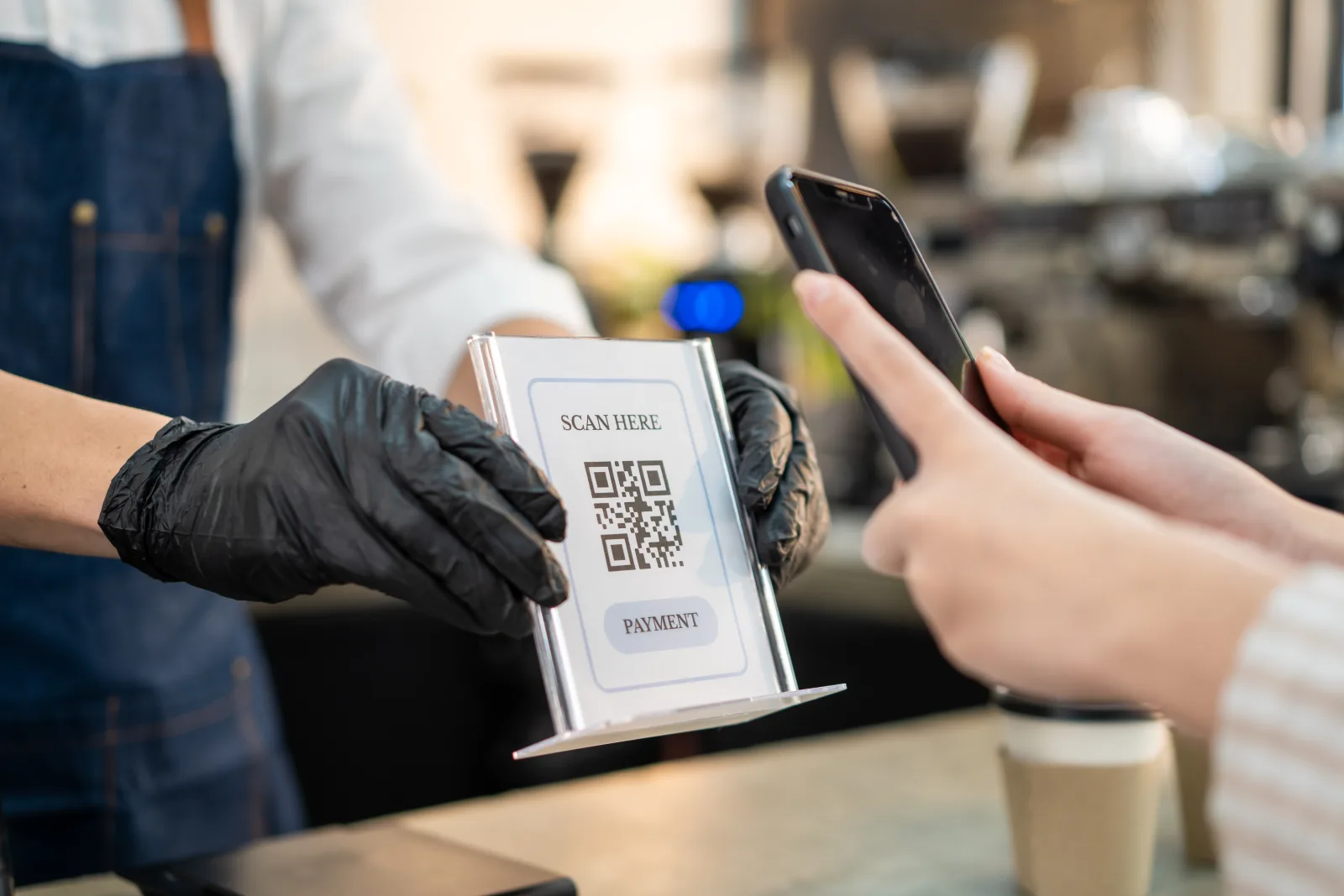
A QR that opens a product page is not automatically a GS1 retail barcode. Before choosing a generator, separate two jobs: opening online information and identifying the product to a retail system. They can lead to similar-looking QR images, but the encoded information matters.
What “GS1 QR code” means
A QR Code containing a GS1 Digital Link URI stores structured GS1 identification data, such as a GTIN, in a web address. See GS1’s overview of 2D barcodes.
The formal GS1 QR Code uses FNC1 mode; an ordinary QR containing a Digital Link URI is different. GS1’s system architecture distinguishes them. Use the precise term when briefing a barcode supplier.
A concrete Digital Link example
The GS1 quick-start guide includes:
https://example.com/01/09524000059109
Here, 01 identifies the GTIN field. This is an illustrative GS1 example, not an identifier for your product and not a working product demonstration. Do not copy the number onto your packaging.
Where CreateQR fits—and where it does not
A standard CreateQR dynamic website QR encodes a short address with this shape:
https://createqr.app/r/{code}
The braces represent that QR’s individual code, not text to enter. The server then forwards the visitor to the saved destination. This makes it useful for an editable product-information link.
However, putting a Digital Link URI in the destination field does not put its GTIN into the printed QR. A decoder first reads the CreateQR short link. A later browser redirect does not turn that artwork into a compliant GS1 retail symbol.
The ordinary CreateQR builder is therefore not evidence of GS1 retail certification. If your goal is a customer-facing page, use the website QR builder. If the goal is checkout identification, specify that requirement separately.
Before approving packaging
- Obtain the correct product identifier and requirements from your GS1 organisation and retail partners.
- Ask your supplier to confirm the exact data encoded in the downloaded artwork—not only the page eventually opened.
- Validate the barcode and test the final-size print with the intended retail equipment. A successful phone scan alone is not checkout acceptance.
- Agree who maintains the destination and who approves future packaging changes.
Do not remove an existing EAN/UPC just because the QR opens successfully. GS1’s retail transition guidance notes that not all retail systems process these 2D formats.