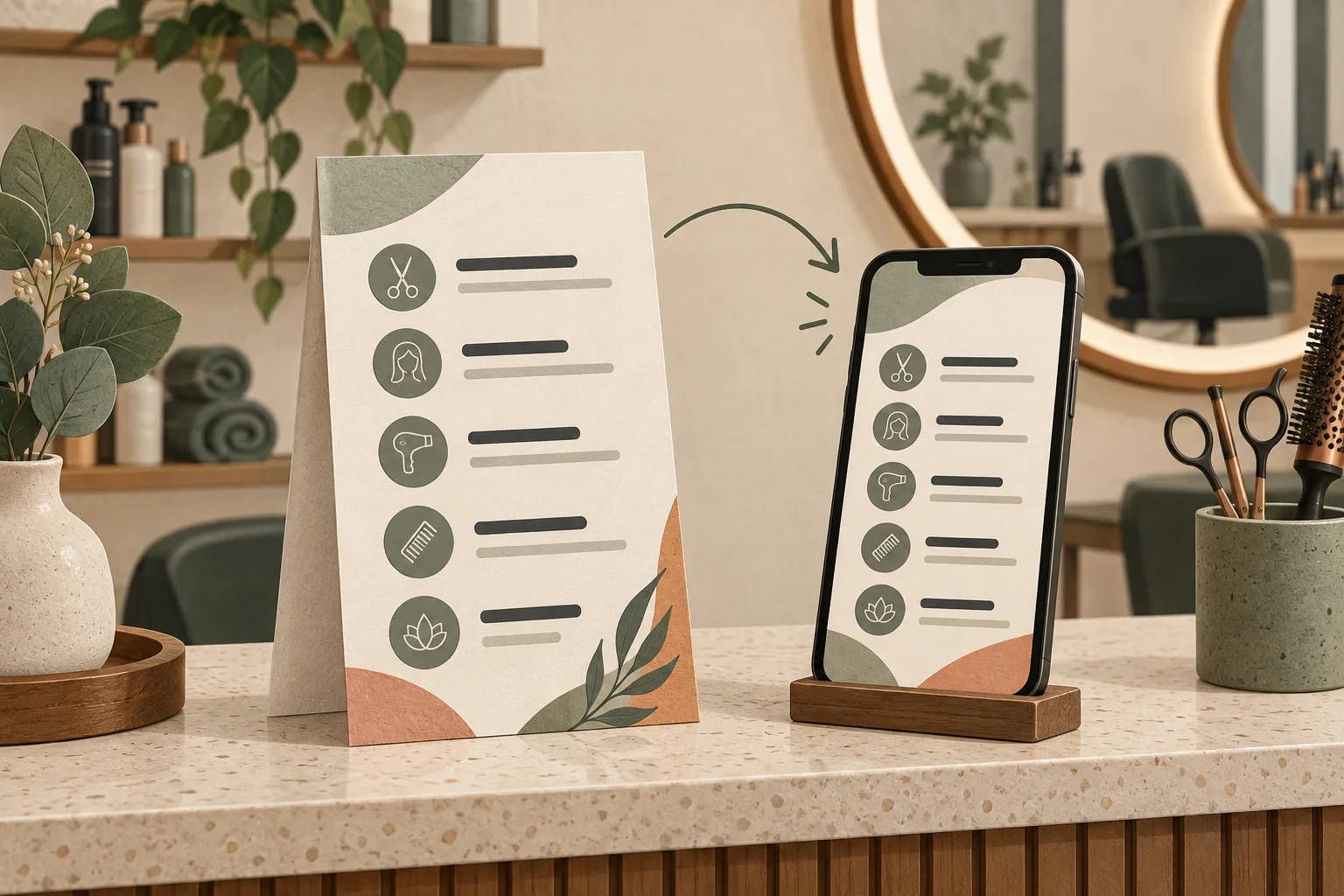
A customer is standing at your salon counter, looking for the price of a cut and colour. Your printed card is out of date, the PDF on your social profile is older still, and the correct list is on your laptop. A QR code helps only if it leads to one clear, current version.
This guide shows how a salon, barber, beauty studio or other service business can publish a mobile-friendly price list, put its QR code where customers need it, and update the same saved QR when prices change. The worked example is fictional—not a customer case study or a claim about typical prices.
The short answer: put your current price list in a publicly accessible PDF or web page. Create a QR code that opens it, save and test the code, then print it. For a CreateQR PDF QR, replace the document inside the existing saved QR when the list changes. Do not create a new QR and expect the old printed one to follow it.
1. Choose the destination before designing the QR
A QR code is the doorway, not the price list. Choose the format that your team can keep accurate.
On a phone, swipe the table sideways to see every column.
| Choose | When it makes sense | Watch out for |
|---|---|---|
| A PDF | You already maintain a short, designed price list and want a straightforward upload-and-replace workflow. | Tiny type, large downloads and several narrow columns are awkward on a phone. Start with a simple single-column layout. |
| A mobile-friendly web page | You update services frequently or need links to booking, accessibility information or several language versions. | You need to maintain the page and its address. A QR does not fix an outdated page or a broken booking link. |
Already have a good price page on your website? Link to that page rather than making a second list that can fall out of sync. If you choose a PDF, our PDF QR guide covers the file-upload and replacement controls in more detail.
2. Answer the questions customers actually ask
“Haircut from €25” may leave someone wondering whether washing, styling or long hair costs extra. A useful list explains the service, what is included, and how a variable price is confirmed. Put your business name, currency and effective date near the top.
A fictional salon price-list example
Studio Example · Services and prices · Valid from 1 November 2026 · Prices in EUR
On a phone, swipe the table sideways to see every column.
| Service | Price | What the customer should know |
|---|---|---|
| Clipper cut | €22 | Cut and finish. Washing is not included. |
| Wash, cut and blow-dry | From €38 | Depends on hair length and styling time. Confirm the total before the appointment starts. |
| Root colour | From €45 | Colour service only. Ask whether your chosen cut or finish is additional. |
| Consultation | Free | A consultation is not a booking confirmation or a commitment to a quoted service. |
These amounts are illustrative, not recommended prices. Replace them with your actual services and charges, explain applicable taxes and compulsory extras, and check the price-display rules that apply to your business. Do not publish a discount, tax treatment or “from” price that your team cannot explain.
Add a clear booking or contact route and a sentence about when variable prices are confirmed. Keep private notes, staff-only margins, customer names and internal comments out of the public file. For businesses serving several languages, make those versions easy to find and keep their effective dates aligned.
A copyable structure
- Business name and location, if you have more than one branch.
- “Prices valid from [date]” and the currency.
- Service name, fixed or starting price, and what is included.
- How extras or individual quotes are agreed.
- How to ask a question or book.
- An accessible alternative: ask a member of staff for a printed list.
3. Create the price-list QR in CreateQR
- Prepare the public document. Export a readable PDF. Prefer selectable text, clear headings and a simple layout; avoid turning the whole page into a photograph. Review the PDF on a phone before uploading.
- Choose PDF in the QR builder. Upload the file, wait for confirmation and check the filename. An attractive preview is not proof that an upload finished.
- Name the document clearly. Use a title such as “Salon services and prices” rather than an internal filename. A short description can state the location and effective date.
- Choose how it opens. The “Link directly to PDF” option opens the file directly; leaving it off shows a document page first. This direct-opening option does not turn the CreateQR PDF QR into a static code.
- Finish saving the QR. Complete the account and save steps shown. Use dark modules on a light background, keep the border around the code clear and download the saved QR rather than a screenshot of its preview.
- Test the downloaded file and a printed proof. Confirm that the right list opens—not merely that the camera recognises a code.
For a web-hosted list, choose the website/URL type and enter the exact public price-page address. Test it while signed out of your website or storage account. Customers should not have to request access to see a public price list.
Before you print the whole batch
- Open the destination on mobile data and on both iPhone and Android if available.
- Check the business name, currency, effective date, first page and smallest text.
- Test the actual print size, material, viewing distance and lighting. There is no single size that guarantees every placement will scan.
- Check whether a laminated cover, window reflection or curved surface makes scanning difficult.
- Keep a readable short web address or a staff-assisted option beside the QR.
Do not enlarge a blurry screenshot for your window display. Use a suitable download from the saved QR and test a physical proof. Our pre-print testing checklist explains the wider checks.
4. Put it where a price question happens
A code tucked behind the till is not a customer journey. Place it where someone has both a reason and an opportunity to scan.
On a phone, swipe the table sideways to see every column.
| Placement | Suggested wording | Practical check |
|---|---|---|
| Reception counter | “Scan for services and current prices” | Keep the card within easy reach and out of glare. |
| Salon mirror or waiting area | “Explore our services and prices” | Test from the customer’s normal position—not just close up. |
| Shop window | “View our price list” | Test from outside with the shop closed, including reflections. |
| Appointment card | “Check services and prices before your next visit” | Leave enough space for the QR and its clear border. |
Avoid calling it “Book now” if the destination is only a PDF. The promise beside the code should match the next screen. On your website or social profile, also give visitors a normal clickable link: someone already holding a phone should not need another device to scan.
5. Change the list, not the printed QR
Suppose Studio Example changes its services next month. The printed counter card can stay in place if the business updates the destination behind that same saved QR.
- Prepare the revised list with its new effective date. Check that the version you publish is meant to be active now.
- Open the existing saved PDF QR in your account and edit its content.
- Choose another PDF, wait for the replacement to upload and save the changes.
- Scan an original printed copy, ideally on a different device or a fresh browser session.
- Check the new date and an actual changed price. Close any previously downloaded PDF; that old local copy will not update itself.
- Tell your team which version is live and update other published price lists, including your website or booking service.
Keep the printed sign timeless. If the sign itself says “Haircut €22”, updating the online PDF cannot change that ink. Put “Current services and prices” beside the QR and keep changing amounts in the destination.
Do not delete the saved QR or replace it with a newly created one. If you manage the PDF on your own website, keeping the same public file address can also preserve a static QR; changing that address without a working redirect cannot. The important question is who controls the destination and keeps it available.
Plan for ongoing access. A printed QR pattern does not have a built-in expiry date, but its destination can stop working if hosting ends, a file is removed or a dynamic service becomes inactive. Review the current CreateQR plans and ongoing-access requirements before a long print run. A trial is not a promise of permanent hosting, and editing a QR is not a way to recover copies of a PDF already downloaded by customers.
6. Check use after the launch-day test
Your own test scans are useful quality checks, not evidence of customer demand. After placing the code, look for scan activity on later days and compare it with opening hours, placement changes and customer questions. A scan does not prove that someone read the list, made a booking or bought a service.
Start with one useful placement. If you later want to compare the window and counter, separate saved QR codes can make that comparison clearer, subject to your plan’s limits. Remember to maintain every destination. Low scans can mean poor visibility, an unclear invitation or simply that customers already know the prices—not necessarily a broken QR.
Choose one person to own the list. Ask them to check it after every price change and periodically scan a printed copy. That small maintenance habit matters more than adding another decorative frame.
Common questions
Can I update a price-list QR after printing?
Yes, when you can update its existing destination. For a saved CreateQR PDF QR, replace the file inside that QR and save. A static QR can also keep working if you maintain the same web address; it cannot itself be re-encoded after printing.
Do customers need an app or a CreateQR account?
A publicly accessible price list should open in a browser after scanning with a supported phone camera or QR reader. Customers do not need a CreateQR account to view a public PDF QR destination. They do need internet access, and phone behaviour can vary.
Should the QR replace every printed price list?
No. Keep a practical alternative for people who cannot or do not want to scan. A QR is an additional route to information, not a reason to make prices harder to access.
Can the list change automatically on a future date?
This guide describes a manual update. Adding a future date inside a PDF does not schedule a replacement. Publish the intended current version and arrange a clear handover when prices change.
Give customers one price list they can trust
Prepare a clear list, save a PDF or website QR, and test one printed copy before distributing it. Then keep that same saved QR when the destination needs an update.
Editorial note: the salon, prices and scenario above are illustrative. The cover is an AI-generated editorial illustration, not a customer photograph or product screenshot.