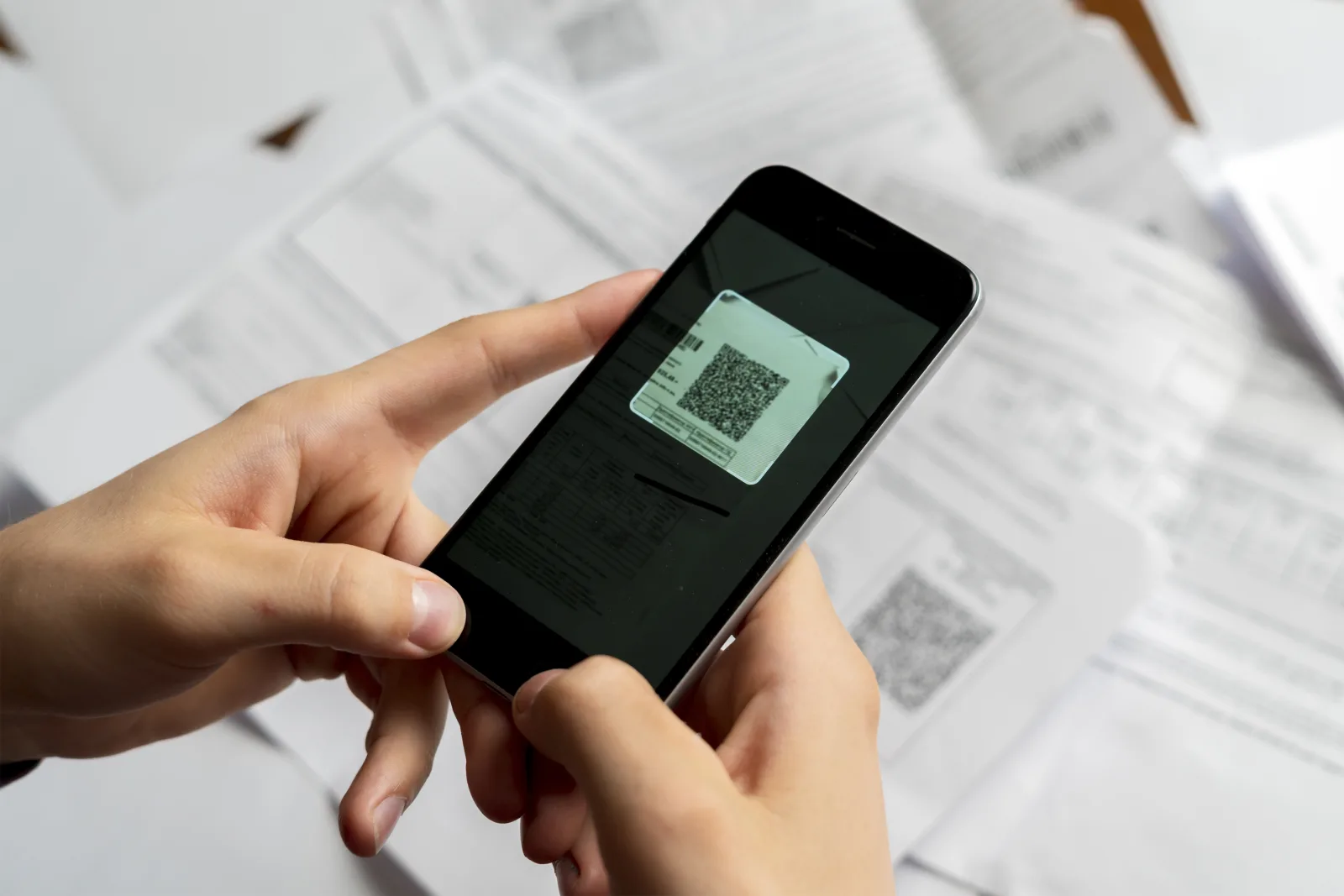
A QR code cannot grant permission to a private PDF. If scanning opens a login or access-denied page, the camera has usually done its job: the next question is whether that reader should be allowed to open the destination. Do not start by redesigning or reprinting the code.
Decide who should have access
For an approved public brochure, visitors should be able to read it without your account. For employee instructions, client documents, or other restricted material, authentication may be intentional. Test that an invited reader can open the file; do not make a private document public just to remove a login screen. Only its owner or an authorized administrator should change the sharing rules.
Identify the failure before changing anything
- No URL appears when scanning: check the camera, print, contrast, and size. File permissions cannot prevent the camera from detecting a QR pattern.
- The expected file asks for access: check its sharing settings and the reader's account.
- A different file or website opens: compare the encoded link and final destination using the wrong-page guide.
- The QR service reports an unavailable code: investigate that service and the saved QR, not only the cloud file.
Reproduce the reader's experience
- Scan the actual printed code. Note the final website and exact error; a successful test from an old preview is not enough.
- Ask the owner for the intended sharing link. Compare it with the destination reached from the QR without posting private links publicly.
- For a public document, paste that link into a private/incognito window where you are not signed in. Check that the browser has not handed it to an already signed-in app.
- For a restricted document, ask an intended recipient to test with their own authorized account. Never share the owner's password or verification codes.
- Try the same link directly on a phone. If it fails both directly and through the QR, focus on the file service. If only the QR route fails, inspect the redirect or saved destination.
Ask the file owner to review cloud sharing
- Google Drive: check the file's audience and reader role using Google's sharing instructions.
- OneDrive: review the particular sharing link's permitted audience using Microsoft's sharing instructions.
Ask for the minimum access appropriate to the intended reader. If organizational policy prevents public sharing, keep the restriction and request an approved distribution method. Do not broaden an entire folder's audience to distribute one brochure. After an authorized change, get the confirmed sharing link and repeat the recipient test.
If the PDF was uploaded to CreateQR
A cloud URL entered in a link QR is different from a PDF uploaded through CreateQR's PDF option. For an uploaded file, open the existing saved QR in your account: check that the upload completed, the correct file remains attached, the QR is active, and any account-verification or availability notices are resolved.
The direct-PDF toggle selects a file view instead of a document page; it does not override Google or Microsoft permissions. Do not upload restricted cloud documents elsewhere to bypass their controls. For legitimate setup or replacement steps, use the PDF guide and builder.
Retest before reprinting
After an authorized correction, scan an original printed copy on iPhone and Android using the intended access conditions. Confirm the correct document and version. If help is needed, send support the QR identifier, final domain, exact error, and test time through a private channel—not passwords or confidential attachments. Reprint only if the existing code's destination cannot be corrected.
Share an approved public PDF
Create a PDF QR code for a document you are authorized to share publicly. Keep restricted documents in a service with appropriate access controls.