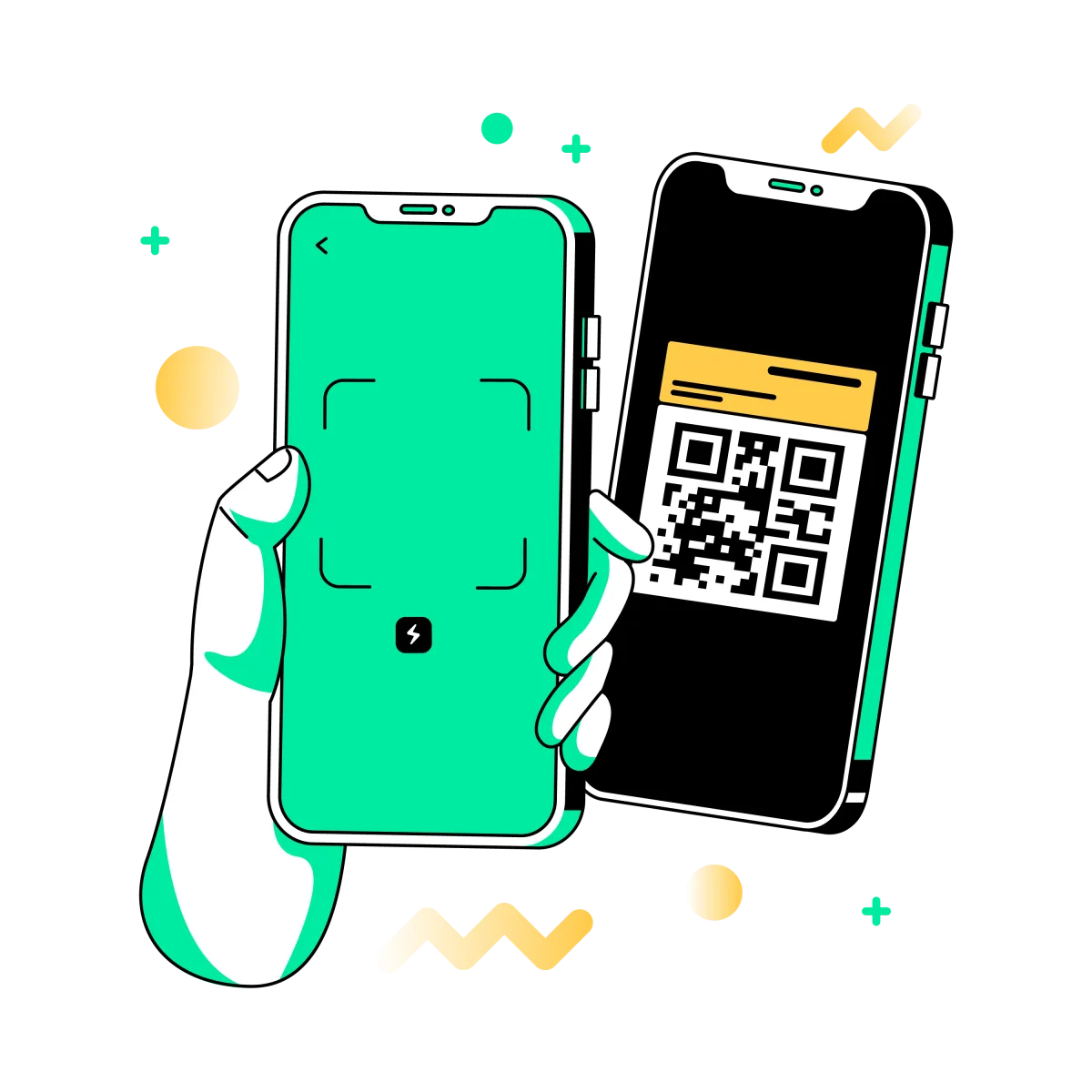
Dacă vrei să scanezi un cod QR pe Android, cea mai simplă metodă este de obicei aplicația Cameră integrată în telefon. Pe multe telefoane Android, trebuie doar să deschizi camera, să o îndrepți spre codul QR și să atingi linkul sau bannerul care apare.
Dacă aplicația ta implicită de cameră nu detectează codul, pe multe dispozitive ai în continuare și alte opțiuni integrate. Unele telefoane Android oferă o scurtătură dedicată Scan QR code în Quick Settings, iar Google Lens te poate ajuta atunci când metoda cu camera nu este suficientă.
Răspuns rapid: Deschide aplicația Camera, îndreapt-o spre codul QR și atinge bannerul sau linkul care apare. Dacă pe telefonul tău nu funcționează, încearcă scurtătura Scan QR code din Quick Settings sau folosește Google Lens ca alternativă.
De ce ai nevoie înainte să scanezi
Scanarea unui cod QR pe Android este de obicei rapidă, dar câteva detalii mici pot face procesul mai ușor. Codul trebuie să fie vizibil, bine luminat și suficient de mare pentru ca telefonul să îl poată recunoaște clar.
| Condiție utilă | De ce contează |
|---|---|
| Lumină bună | Ajută camera să focalizeze și să detecteze mai ușor codul |
| Mâini stabile | Reduce neclaritatea și ajută scannerul să identifice codul mai repede |
| Lentilă curată | Urmele și murdăria pot face codul QR mai greu de recunoscut |
| Codul complet în cadru | Marginile tăiate pot împiedica scanarea |
Dacă codul QR este lucios, șifonat, deteriorat sau tipărit prea mic, scanarea poate dura mai mult chiar dacă telefonul tău Android funcționează corect.
Cum să scanezi un cod QR cu camera Android
Pe multe telefoane Android, aceasta este cea mai rapidă metodă pentru utilizarea de zi cu zi.
1. Deschide aplicația Cameră
Deschide camera integrată așa cum faci de obicei, din ecranul principal, ecranul de blocare sau sertarul de aplicații.
2. Îndreapt-o spre codul QR
Ține telefonul astfel încât codul QR să apară clar în cadru. De obicei, nu trebuie să faci o fotografie.
3. Așteaptă notificarea
Telefonul ar trebui să detecteze codul QR și să afișeze pe ecran un banner, o bulă sau un link pe care îl poți atinge.
4. Atinge pentru a deschide
Atinge notificarea pentru a deschide site-ul, meniul, pagina aplicației, biletul, linkul de plată sau altă destinație.
Sfat simplu: Dacă nu se întâmplă nimic, apropie-te puțin sau depărtează-te și păstrează codul centrat în cadru.
Cum să scanezi un cod QR din Quick Settings
Unele telefoane Android includ o scurtătură dedicată Scan QR code în Quick Settings. Aceasta poate fi utilă atunci când aplicația Cameră obișnuită nu detectează ușor codul sau când vrei o interfață de scanare mai clară.
1. Deschide Quick Settings
Glisează în jos din partea de sus a ecranului pentru a deschide panoul Quick Settings.
2. Caută Scan QR code
Dacă telefonul tău oferă această scurtătură, atinge-o pentru a deschide scannerul QR.
3. Îndreaptă scannerul spre cod
Ține telefonul stabil și asigură-te că întregul cod QR este vizibil.
4. Deschide rezultatul
Atinge linkul sau acțiunea detectată după ce scannerul recunoaște codul.
Dacă nu vezi un scanner QR în Quick Settings, este posibil ca dispozitivul tău să nu includă această scurtătură sau să fie nevoie să o adaugi din opțiunile de personalizare Quick Settings.
Cum să folosești Google Lens pe Android
Dacă aplicația implicită de cameră nu scanează bine codul QR, Google Lens este o alternativă utilă pe multe dispozitive Android. O variantă simplă este prin Chrome.
1. Deschide Chrome
Pornește Chrome pe dispozitivul tău Android și deschide o filă nouă.
2. Atinge Google Lens
În bara de căutare, deschide Google Lens și alege opțiunea de căutare cu camera.
3. Poziționează codul QR
Pune codul în interiorul cadrului de pe ecran pentru ca Lens să îl poată detecta.
4. Atinge linkul
Deschide linkul sau acțiunea care apare după ce Google Lens recunoaște codul.
Pe dispozitivele Google Pixel, Google menționează de asemenea Google Lens ca metodă acceptată pentru scanarea codurilor QR.
Ce să faci dacă telefonul tău Android nu scanează codul
Dacă telefonul nu recunoaște codul QR, problema ține adesea de condițiile din jur sau de codul tipărit în sine. Începe cu cele mai simple soluții.
Încearcă aceste soluții rapide
- Curăță lentila camerei
- Apropie-te puțin sau depărtează-te
- Ține telefonul mai stabil
- Mărește lumina
- Încearcă Quick Settings sau Google Lens în loc de Camera
Verifică și codul QR
- Asigură-te că întregul cod este vizibil
- Evită reflexiile de pe suprafețe lucioase
- Verifică dacă este deteriorat sau neclar
- Vezi dacă poate fi scanat de un alt telefon
Dacă nici un alt telefon nu poate scana codul QR, problema este probabil legată de designul codului, calitatea tipăririi sau deteriorare, nu de telefonul tău Android.
Când să folosești Camera vs Quick Settings vs Google Lens
Fiecare metodă este utilă într-o situație puțin diferită.
| Folosește Camera când: | Folosește Quick Settings când: | Folosește Google Lens când: |
|---|---|---|
| Vrei cea mai rapidă opțiune pentru uz zilnic | Dispozitivul tău are o scurtătură dedicată pentru scanner QR | Metoda cu camera nu funcționează bine |
| Codul QR este clar și ușor de scanat | Vrei o interfață de scanare mai concentrată | Folosești deja Chrome și vrei o variantă de rezervă |
| Ai deja Camera deschisă | Suportul camerei pe telefonul tău este inconsistent | Vrei încă o opțiune integrată, compatibilă cu Android |
Pentru majoritatea oamenilor, cel mai bine este să înceapă cu aplicația Camera, apoi să treacă la Quick Settings sau Google Lens dacă este nevoie.
Sfaturi de siguranță înainte să deschizi un link QR
Majoritatea codurilor QR sunt sigure de scanat, dar este totuși bine să te oprești o secundă înainte să deschizi un link neașteptat. Codurile QR pot deschide site-uri, pagini de autentificare, pagini de aplicații, fluxuri de plată și alte destinații.
- Scanează doar coduri QR din surse în care ai încredere
- Fii atent la autocolante aleatorii lipite peste coduri existente
- Oprește-te dacă destinația pare fără legătură cu contextul
- Nu introduce date de plată sau de autentificare pe o pagină suspectă
- Dacă ceva pare în neregulă, închide pagina și verifică mai întâi
Acest lucru contează mai ales în locurile publice, unde uneori apar stickere QR false sau înlocuite.
Greșeli frecvente de evitat
- Ții telefonul prea aproape, astfel încât codul QR să nu încapă în cadru
- Încerci să faci o fotografie în loc să aștepți notificarea de scanare
- Scanezi în condiții de reflexii puternice sau umbre dense
- Presupui că telefonul este defect când, de fapt, codul QR este tipărit prost
- Ignori destinația înainte să atingi un link necunoscut
- Uiți că pe unele dispozitive Quick Settings sau Google Lens pot fi mai ușor de folosit
Cea mai frecventă problemă este simplă: codul nu este încadrat suficient de clar sau calitatea tipăririi este slabă.
Întrebări frecvente
Am nevoie de o aplicație ca să scanez un cod QR pe Android?
De multe ori, nu. Multe telefoane Android pot scana coduri QR cu aplicația Cameră integrată sau cu o scurtătură de scanner inclusă în sistem.
De ce camera Android nu scanează codul QR?
Cele mai frecvente motive sunt reflexiile, imaginea neclară, lumina slabă, lentila murdară, contrastul redus sau un cod QR deteriorat.
Unde găsesc Scan QR code pe Android?
Pe unele dispozitive Android, apare în Quick Settings. Pe altele, aplicația Cameră integrată gestionează direct codurile QR.
Pot folosi Google Lens pentru a scana un cod QR pe Android?
Da. Google Lens poate fi o alternativă utilă atunci când aplicația Cameră obișnuită nu detectează bine codul.
Ce fac dacă telefonul meu nu are un scanner QR în Quick Settings?
Este posibil ca dispozitivul tău să nu includă această scurtătură sau să fie nevoie să o adaugi din personalizarea Quick Settings. Poți încerca în continuare aplicația Camera sau Google Lens.
Ce ar trebui să fac dacă codul QR deschide o pagină suspectă?
Nu continua. Închide pagina și evită să introduci informații personale, date de plată sau date de autentificare dacă nu ai încredere în sursă.
Creează un cod QR ușor de scanat
Creează un cod QR clar, testează-l pe dispozitive reale și distribuie-l cu încredere.