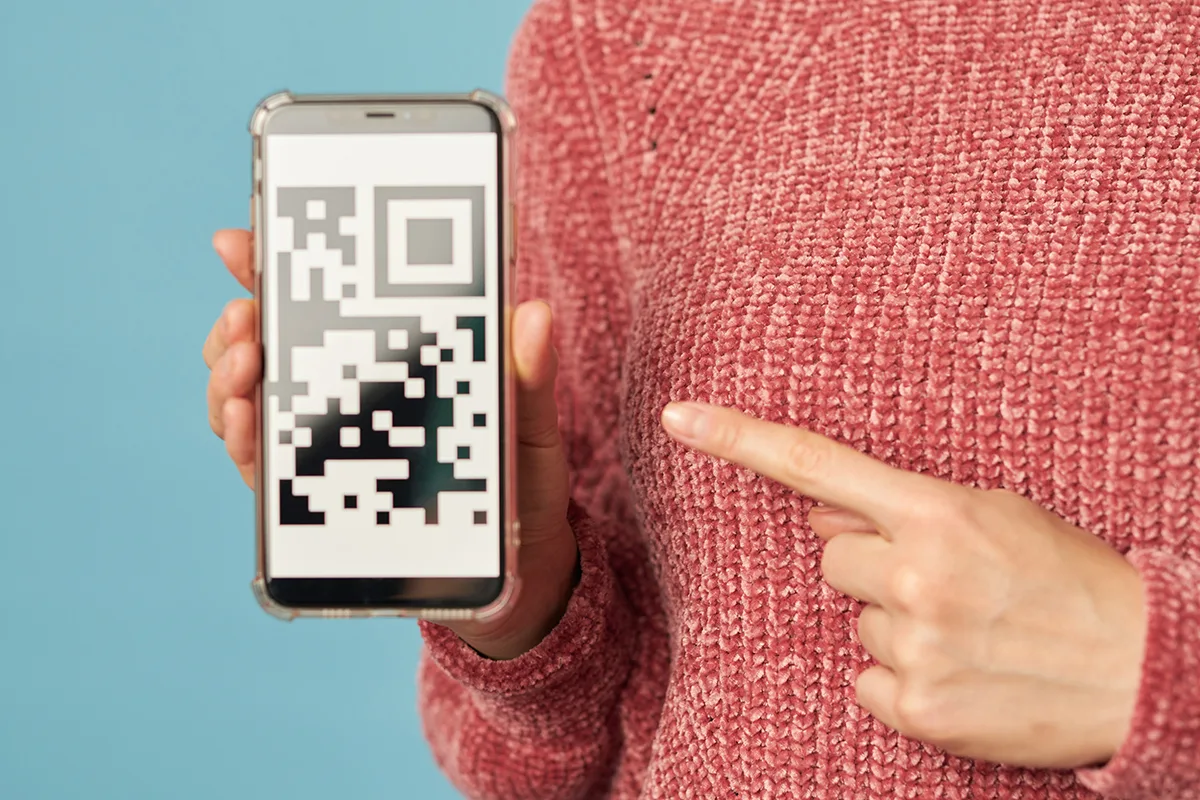
QR 코드가 잘못된 페이지를 여는 문제는 가장 답답한 QR 문제 중 하나입니다. 겉보기에는 코드가 정상 작동하는 것처럼 보여도, 실제 고객 경험은 망가져 있기 때문입니다. 스캔 자체는 성공하지만, 의도한 페이지 대신 예전 페이지, 홈페이지, 다른 캠페인, 다른 파일, 또는 전혀 관련 없어 보이는 무언가가 열립니다.
대부분의 경우 진짜 문제는 QR 이미지 자체가 아닙니다. 보통은 그 뒤의 연결 대상, 리디렉션 설정 방식, 또는 예전 인쇄물이 아직도 유통되고 있다는 점이 원인입니다. 다행히 이런 잘못된 페이지 문제는 처음부터 다시 시작하지 않아도 진단하고 해결할 수 있는 경우가 많습니다.
빠른 답변: QR 코드가 잘못된 페이지를 연다면, 가장 흔한 원인은 오래된 정적 연결 대상, 잘못 설정된 동적 리디렉션, 여전히 사용 중인 예전 인쇄물, 스마트 라우팅 규칙, 또는 재사용되었거나 변조된 QR 이미지입니다. 먼저 현재 인쇄된 QR 코드가 실제로 어디를 여는지 확인한 뒤, 원래 열어야 했던 페이지와 비교해 보세요.
“잘못된 페이지가 열린다”는 것이 보통 의미하는 것
모든 잘못된 페이지 문제가 같은 것은 아닙니다. 어떤 경우에는 QR 코드가 페이지의 예전 버전을 엽니다. 또 어떤 경우에는 의도한 랜딩 페이지 대신 홈페이지 같은 기본 대체 페이지가 열립니다. 사용자의 기기, 위치, 브라우저 동작에 따라 서로 다른 연결 대상이 보이는 경우도 있습니다.
| 보이는 현상 | 보통 의미하는 원인 |
|---|---|
| 예전 페이지가 열린다 | QR 코드가 여전히 이전 연결 대상이나 이전 리디렉션 경로를 가리키고 있음 |
| 홈페이지가 열린다 | 원래 페이지가 이동했거나, 깨졌거나, 이제 기본 대체 페이지로 리디렉션됨 |
| 사람마다 다른 페이지가 열린다 | 기기, 언어, 국가, 앱 스토어 또는 스마트 링크 규칙이 최종 연결 대상을 바꾸고 있음 |
| 전혀 관련 없는 것이 열린다 | 잘못된 QR 이미지가 사용되었거나 QR 코드가 변조되었을 수 있음 |
| 도메인은 맞지만 내용이 다르다 | URL 뒤의 페이지 내용이 바뀌었거나, 파라미터가 잘못되었거나, 캠페인 로직이 오래되었음 |
간단한 원칙: QR 코드는 스캔되지만 결과가 이상하다면, 먼저 연결 대상 문제로 보고 접근하세요. 카메라 문제로 먼저 판단하지 마세요.
무엇을 바꾸기 전에 먼저 하는 빠른 진단
디자인을 다시 하거나, 재인쇄하거나, 무언가를 교체하기 전에 몇 가지 빠른 확인부터 해보세요. 대부분 이 단계에서 문제 범위가 금방 좁혀집니다.
- 같은 인쇄된 QR 코드를 최소 두 대의 다른 휴대폰으로 스캔해 보기
- 원본 디지털 QR 파일이 남아 있다면 그것도 스캔해 보기
- 오늘 실제로 어떤 페이지가 열리는지 정확히 기록하기
- 그 결과를 원래 열어야 했던 페이지와 비교하기
- 해당 QR 코드가 정적인지 동적인지 확인하기
- 예전 포스터, 삽지, 카드, 라벨이 아직 유통 중인지 확인하기
- 공공장소에 있는 QR 코드라면 스티커 덧붙임이나 변조 흔적이 있는지 보기
유용한 지름길: 원본 파일은 한 페이지를 여는데 인쇄물은 다른 페이지를 연다면, 고장 난 QR 코드 하나의 문제가 아니라 QR 코드 버전이 여러 개 섞여 있을 가능성이 큽니다.
QR 코드가 잘못된 페이지를 여는 흔한 이유 10가지
잘못된 연결 대상으로 이어지는 QR 문제의 대표적인 원인들입니다.
1. 정적 QR 코드에 예전 페이지가 그대로 인코딩되어 있다
정적 QR 코드는 인쇄 후 직접 수정할 수 없습니다. 예전 페이지가 변경되었거나, 이동했거나, 오래된 정보가 되었다면, 해당 QR 코드는 교체하거나 예전 URL을 리디렉션하기 전까지 계속 예전 연결 대상을 열 수 있습니다.
2. 동적 연결 대상이 잘못 업데이트되었다
동적 QR 코드는 수정 가능하지만, 그만큼 잘못 업데이트하면 트래픽이 엉뚱한 곳으로 갈 수 있습니다. 목적지를 한 번 잘못 바꾸는 것만으로도 해당 QR을 쓰는 모든 인쇄물에 영향이 갑니다.
3. 원래 페이지가 이제 다른 곳으로 리디렉션된다
QR 코드는 여전히 의도한 URL을 가리킬 수 있지만, 그 URL 자체가 এখন 홈페이지나 새 캠페인 페이지, 또는 대체 위치로 리디렉션되고 있을 수 있습니다.
4. 디자인에 잘못된 QR 이미지가 들어갔다
생각보다 자주 있는 일입니다. 디자이너나 마케터가 예전 QR 에셋을 실수로 재사용하거나, 다른 캠페인 파일을 복제하거나, 잘못된 버전을 인쇄용으로 내보냈을 수 있습니다.
5. 여러 인쇄 버전이 동시에 남아 있다
한 테이블 텐트나 전단 묶음, 제품 삽지에는 예전 QR이 있고 다른 버전에는 새 QR이 있을 수 있습니다. 그러면 서로 다른 인쇄물을 스캔한 고객이 각기 다른 페이지로 이동하게 됩니다.
6. 기기 기반 라우팅이 결과를 바꾼다
어떤 연결 대상은 iPhone, Android, 데스크톱, 앱 설치 사용자, 앱 미설치 사용자에 따라 다르게 동작합니다. 그래서 설정대로는 작동하고 있어도, 겉보기에는 QR 코드가 잘못된 것처럼 보일 수 있습니다.
7. 언어 또는 위치 기반 리디렉션이 우선 적용된다
지역 라우팅, 언어 선택, 국가별 스토어 로직 때문에 어떤 사용자는 한 페이지로, 다른 사용자는 또 다른 페이지로 갈 수 있습니다. 해외 고객이 있는 비즈니스에서는 매우 흔한 혼선 원인입니다.
8. 페이지 파라미터가 없거나 깨졌다
랜딩 페이지가 쿼리 파라미터, 캠페인 태그, 또는 딥링크 로직에 의존하는 경우가 있습니다. 이 값들이 리디렉션 체인 어딘가에서 빠지거나 삭제되면 사용자가 잘못된 화면으로 갈 수 있습니다.
9. 브라우저가 오래된 결과를 열고 있다
흔한 경우는 아니지만, 이전 리디렉션이나 캐시된 결과 때문에 QR 코드가 잘못된 것처럼 보일 때가 있습니다. 여러 휴대폰에서 테스트해 보면 실제 원인이 캐시인지 금방 확인할 수 있습니다.
10. QR 코드가 교체되었거나 변조되었다
특히 공공장소에서 전혀 관련 없는 페이지가 열린다면, 실제 QR 부착 상태를 확인하세요. 스티커 덧붙임이나 교체된 코드가 정상적인 스캔 순간을 가로챌 수 있습니다.
QR 코드 유형별 해결 방법
올바른 해결책은 처음 만든 QR 코드의 종류에 따라 달라집니다.
| 상황 | 가장 좋은 해결 방법 | 재인쇄 필요? |
|---|---|---|
| 동적 QR이 잘못된 페이지를 가리킴 | QR 뒤의 연결 대상을 수정하고 다시 테스트하기 | 보통 필요 없음 |
| 정적 QR이 아직 내가 관리하는 예전 URL을 가리킴 | 페이지를 업데이트하거나 예전 URL을 올바른 새 대상로 리디렉션하기 | 대개 필요 없음 |
| 정적 QR이 내가 제어하지 못하는 예전 URL을 가리킴 | 새 QR 코드를 생성하고 인쇄된 버전을 교체하기 | 보통 필요함 |
| 잘못된 QR 에셋이 인쇄물에 들어감 | 에셋을 교체하고 유통 중인 모든 버전을 점검하기 | 대개 필요함 |
| 기기 또는 위치 기반 라우팅 때문에 불일치가 발생함 | 라우팅 규칙을 점검하고 기기, 브라우저, 위치별로 테스트하기 | 보통 필요 없음 |
| 공공장소의 QR 코드가 변조된 것처럼 보임 | 즉시 제거하거나 가리고 주변 부착물도 함께 점검하기 | 보통 필요함 |
연결 대상이 나중에 바뀔 수 있다면, 함께 보면 좋은 가이드는 정적 QR 코드 vs 동적 QR 코드: 비즈니스에는 어느 쪽이 더 적합할까요?, 나중에 수정할 수 있는 링크용 QR 코드를 만드는 방법, 그리고 인쇄한 뒤에도 QR 코드를 바꿀 수 있을까요? 네—방법이 있습니다입니다.
나중에 연결 대상이 바뀌어도 업데이트할 수 있는 QR 코드가 필요하신가요?
간단한 문제 해결 순서
가장 빠르고 실용적인 해결 경로를 원한다면, 이 순서대로 진행해 보세요.
1. 오늘 실제로 QR 코드가 무엇을 여는지 확인하기
실제 인쇄된 QR 코드를 스캔하고, 열려야 한다고 생각하는 페이지가 아니라 실제로 열린 정확한 대상를 기록하세요.
2. 의도한 연결 대상과 비교하기
캠페인 브리프, 랜딩 페이지, 메뉴 URL, PDF 링크, 또는 에셋 기록을 확인해 이 코드가 원래 무엇을 해야 했는지 파악하세요.
3. 정적 QR인지 동적 QR인지 구분하기
이 단계에서 QR 뒤의 연결 대상을 고칠 수 있는지, 아니면 새 코드를 만들어야 하는지가 결정됩니다.
4. 여러 기기에서 테스트하기
iPhone과 Android의 결과가 다르다면, 문제는 QR 자체보다 라우팅 로직일 가능성이 큽니다.
5. 리디렉션과 스마트 링크 규칙 점검하기
사용자 유형에 따라 연결 대상이 달라진다면, 앱 스토어 리디렉션, 위치 기반 로직, 언어 리디렉션, 딥링크 대체 경로를 검토하세요.
6. 여러 버전이 존재하는지 확인하기
예전 인쇄 배치, 폴더, 내보낸 파일, 디자인 전달본을 점검해 잘못된 QR 이미지가 어딘가에서 재사용되지 않았는지 확인하세요.
7. 연결 대상을 수정하거나 QR 코드를 교체하기
원인이 분명해지면, 실제 연결 대상을 업데이트하거나 인쇄된 QR 코드를 교체하고 오래된 인쇄물은 제거하세요.
가장 좋은 접근법: 먼저 진단하고, 정말 필요할 때만 재인쇄하세요.
다음번에 잘못된 페이지 문제를 예방하는 방법
가장 쉬운 해결책은 애초에 문제가 생기지 않게 하는 것입니다. 아래 습관만 지켜도 출시 전에 대부분의 연결 대상 불일치를 막을 수 있습니다.
- 연결 대상이 한 번이라도 바뀔 수 있다면 동적 QR 코드를 사용하기
- 인쇄된 정적 QR이 아직 의존하는 예전 URL 경로는 유지하기
- 디자인 파일에서 QR 에셋 이름과 버전을 명확하게 관리하기
- 추적과 문제 해결이 중요하다면 배치 위치나 캠페인마다 QR 코드를 따로 쓰기
- 대량 인쇄 전에 iPhone과 Android 모두에서 QR 코드를 테스트하기
- 출시 전에 스마트 링크, 기기, 언어, 위치 규칙을 점검하기
- 오래된 인쇄물을 방치하지 말고 제거해 여러 버전이 섞이지 않게 하기
- 장기간 운영하는 QR 배치는 주기적으로 다시 스캔해 이상 징후를 조기에 발견하기
| 이렇게 하세요 | 이것은 피하세요 |
|---|---|
| 콘텐츠가 바뀔 수 있다면 수정 가능한 연결 대상 사용하기 | 변경되는 캠페인에 정적 코드를 인쇄하기 |
| 가능하면 예전 경로도 리디렉션 가능하게 유지하기 | 운영 중인 QR 코드가 아직 필요한 URL 경로를 삭제하기 |
| QR 파일과 내보낸 버전을 명확히 버전 관리하기 | 실수로 재사용되기 쉬운 일반적인 파일명 쓰기 |
| 기기와 상황별로 테스트하기 | 휴대폰 한 대만 테스트하고 충분하다고 생각하기 |
| 예전 인쇄 버전을 유통에서 제거하기 | 여러 캠페인 버전을 섞인 채로 두기 |
이 주제와 특히 함께 읽기 좋은 관련 가이드는 1,000부 인쇄 전에 QR 코드를 테스트하는 방법입니다.
피해야 할 흔한 실수
- QR 이미지 뒤의 연결 대상을 확인하기 전에 QR 이미지 자체가 문제라고 단정하기
- 자주 바뀌는 콘텐츠에 정적 코드를 인쇄하기
- 동적 연결 대상을 수정한 뒤 실제 인쇄된 QR 코드로 다시 테스트하지 않기
- 예전 포스터, 삽지, 테이블 카드가 계속 유통되게 두기
- 예전 디자인 파일의 QR 에셋을 실수로 재사용하기
- 기기별 또는 위치별 라우팅 규칙을 무시하기
- 연결 대상이 바뀌었는데도 인쇄된 CTA 문구를 그대로 두기
- 공공장소의 QR 코드 배치에서 변조 여부를 점검하지 않기
가장 흔한 실수는 “잘못된 페이지” 문제를 미스터리한 스캔 오류로 보는 것입니다. 실제로는 훨씬 단순한 연결 대상 관리 문제인 경우가 대부분입니다.
FAQ
왜 내 QR 코드는 올바른 페이지 대신 홈페이지를 열까요?
보통은 원래 연결 대상이 이동했거나, 깨졌거나, 이제 홈페이지 같은 대체 페이지로 리디렉션되기 때문입니다.
QR 코드를 업데이트했는데 왜 여전히 예전 페이지가 열리나요?
흔한 원인으로는 정적 QR 코드, 잘못된 동적 업데이트, 계속 사용 중인 예전 URL 리디렉션, 또는 아직 유통 중인 예전 인쇄 버전이 있습니다.
왜 QR 코드는 iPhone과 Android에서 서로 다른 페이지를 열까요?
기기 기반 라우팅, 앱 스토어 로직, 딥링크 규칙, 또는 브라우저 차이 때문에 사용자마다 다른 연결 대상로 보내질 수 있습니다.
QR 코드를 재인쇄하지 않고도 잘못된 연결 대상을 고칠 수 있나요?
동적 QR 코드이거나, 정적 QR이 아직 내가 제어 가능한 URL을 가리키고 있어 리디렉션할 수 있다면 가능한 경우가 많습니다. 정적 QR이 완전히 고정되어 있다면 보통 새 코드를 만들어야 합니다.
왜 일부 사람에게만 잘못된 페이지가 열리나요?
보통은 단순한 QR 이미지 문제가 아니라 기기, 브라우저, 언어, 지역, 또는 라우팅 로직 문제를 뜻합니다.
변조 때문에 QR 코드가 잘못된 페이지를 열 수도 있나요?
네. 공공장소에서는 스티커 덧붙임이나 교체된 코드가 정상적인 스캔을 가로채 전혀 관련 없거나 악의적인 곳으로 보낼 수 있습니다.
가장 빠르게 할 수 있는 첫 단계는 무엇인가요?
오늘 실제 인쇄된 QR 코드를 스캔해 정확히 어떤 연결 대상이 열리는지 기록하고, 원래 열어야 했던 대상과 비교하세요.