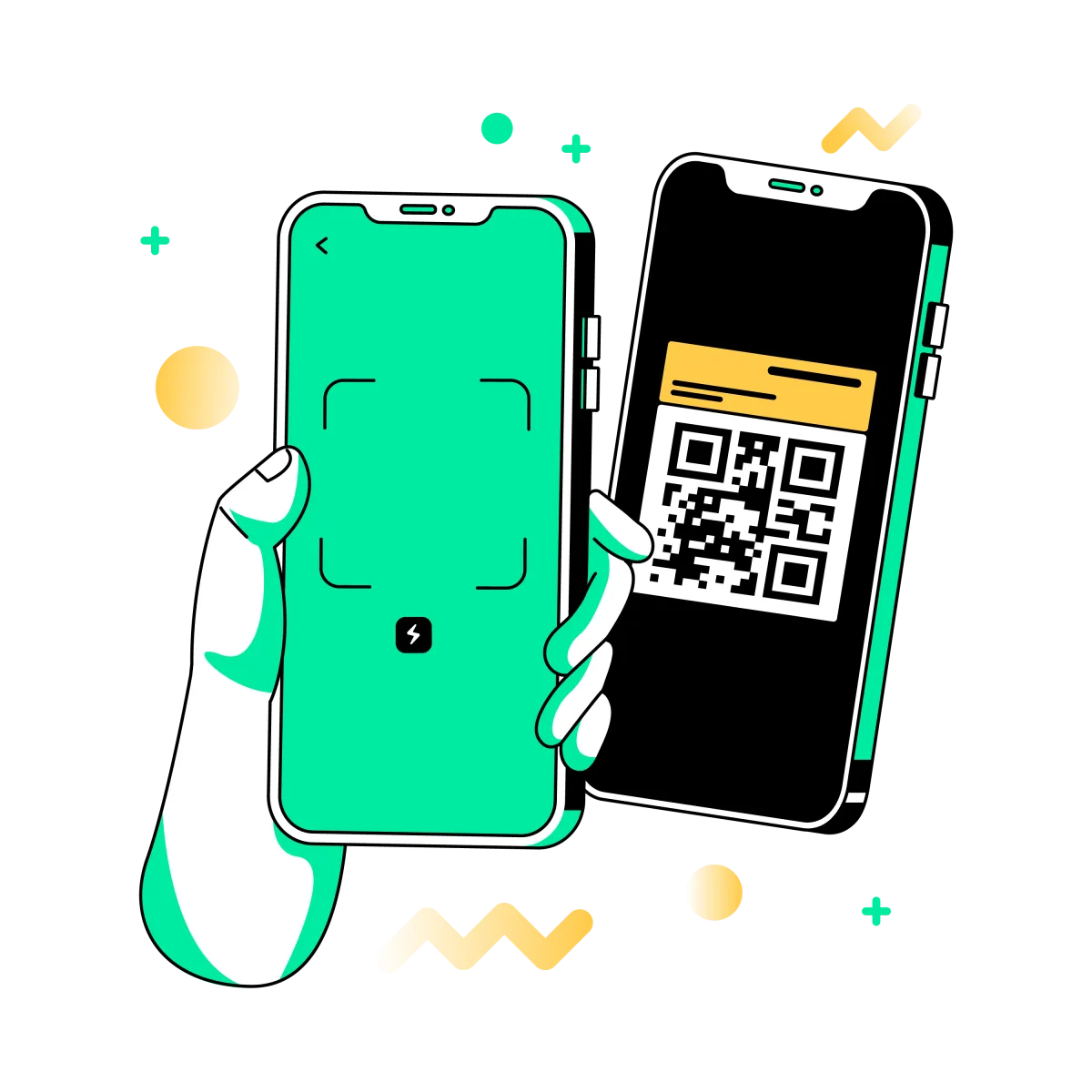
Android에서 QR 코드를 스캔하려면 가장 쉬운 방법은 보통 휴대폰에 기본으로 탑재된 카메라 앱을 사용하는 것입니다. 많은 Android 휴대폰에서는 카메라를 열고 QR 코드에 갖다 댄 뒤, 화면에 나타나는 링크나 배너를 탭하면 됩니다.
기본 카메라가 코드를 인식하지 못하더라도 많은 기기에는 다른 기본 제공 옵션이 있습니다. 일부 Android 휴대폰은 빠른 설정에 전용 QR 코드 스캔 바로가기를 제공하며, 카메라 방식만으로 충분하지 않을 때는 Google Lens도 유용합니다.
빠른 답변: 카메라 앱을 열고 QR 코드에 갖다 댄 다음, 화면에 나타나는 배너나 링크를 탭하세요. 휴대폰에서 작동하지 않는다면 빠른 설정의 QR 코드 스캔 바로가기를 사용하거나, 대안으로 Google Lens를 이용해 보세요.
스캔 전에 필요한 것
Android에서 QR 코드를 스캔하는 일은 대체로 빠르지만, 몇 가지 작은 요소만 갖춰도 훨씬 수월해집니다. 코드는 잘 보이고, 조명이 충분하며, 카메라가 또렷하게 인식할 수 있을 만큼 충분히 커야 합니다.
| 도움이 되는 조건 | 중요한 이유 |
|---|---|
| 좋은 조명 | 카메라가 초점을 맞추고 코드를 감지하기 쉬워집니다 |
| 안정적인 손 | 흔들림을 줄여 스캐너가 코드를 더 빨리 인식하도록 도와줍니다 |
| 깨끗한 카메라 렌즈 | 지문이나 얼룩이 있으면 QR 코드를 인식하기 어려워질 수 있습니다 |
| 프레임 안에 전체 코드가 들어옴 | 가장자리가 잘리면 스캔이 되지 않을 수 있습니다 |
QR 코드가 광택이 심하거나, 구겨졌거나, 손상되었거나, 너무 작게 인쇄된 경우에는 Android 휴대폰이 정상적으로 작동하더라도 스캔에 시간이 더 걸릴 수 있습니다.
Android 카메라로 QR 코드를 스캔하는 방법
많은 Android 휴대폰에서 이 방법이 일상적으로 가장 빠른 방법입니다.
1. 카메라 앱 열기
홈 화면, 잠금 화면 또는 앱 서랍에서 평소처럼 기본 카메라를 여세요.
2. QR 코드에 갖다 대기
QR 코드가 프레임 안에 또렷하게 보이도록 휴대폰을 잡으세요. 보통은 사진을 찍을 필요가 없습니다.
3. 안내가 나타날 때까지 기다리기
휴대폰이 QR 코드를 감지하면 화면에 배너, 말풍선 또는 탭 가능한 링크가 표시됩니다.
4. 탭해서 열기
안내를 탭해 웹사이트, 메뉴, 앱 페이지, 티켓, 결제 링크 또는 다른 목적지를 여세요.
간단한 팁: 아무 반응이 없다면 조금 더 가까이 가거나 멀어져 보고, 코드가 프레임 중앙에 오도록 유지하세요.
빠른 설정에서 QR 코드를 스캔하는 방법
일부 Android 휴대폰에는 빠른 설정에 전용 QR 코드 스캔 바로가기가 포함되어 있습니다. 일반 카메라 앱이 코드를 쉽게 인식하지 못할 때나, 더 집중된 스캐너 화면을 원할 때 유용합니다.
1. 빠른 설정 열기
화면 상단에서 아래로 스와이프해 빠른 설정 패널을 엽니다.
2. QR 코드 스캔 찾기
휴대폰에 이 바로가기가 있다면 탭해서 QR 스캐너를 여세요.
3. 스캐너를 코드에 맞추기
휴대폰을 안정적으로 잡고 QR 코드 전체가 보이도록 유지하세요.
4. 결과 열기
스캐너가 코드를 인식한 뒤 표시되는 링크나 동작을 탭하세요.
빠른 설정에 QR 스캐너가 보이지 않는다면, 기기에 해당 바로가기가 없거나 빠른 설정 사용자 지정 옵션에서 추가해야 할 수 있습니다.
Android에서 Google Lens를 사용하는 방법
기본 카메라가 QR 코드를 잘 스캔하지 못한다면, 많은 Android 기기에서 Google Lens가 유용한 대안이 됩니다. 가장 쉬운 방법 중 하나는 Chrome을 이용하는 것입니다.
1. Chrome 열기
Android 기기에서 Chrome을 실행하고 새 탭을 엽니다.
2. Google Lens 탭하기
검색창에서 Google Lens를 열고 카메라 검색 옵션을 선택하세요.
3. QR 코드 위치 맞추기
Lens가 감지할 수 있도록 화면의 박스 안에 코드를 맞추세요.
4. 링크 탭하기
Google Lens가 코드를 인식하면 표시되는 링크나 동작을 여세요.
Google Pixel 기기에서는 Google도 Google Lens를 QR 코드를 스캔하는 또 다른 지원 방법으로 안내하고 있습니다.
Android 휴대폰이 코드를 스캔하지 못할 때 해야 할 일
휴대폰이 QR 코드를 인식하지 못한다면, 원인은 휴대폰 자체보다 주변 환경이나 인쇄된 코드에 있는 경우가 많습니다. 가장 쉬운 해결책부터 먼저 시도해 보세요.
이 빠른 해결 방법을 시도해 보세요
- 카메라 렌즈를 닦기
- 조금 더 가까이 가거나 멀어지기
- 휴대폰을 더 안정적으로 잡기
- 조명을 더 밝게 하기
- 카메라 대신 빠른 설정 또는 Google Lens 사용하기
QR 코드 자체도 확인하세요
- 코드 전체가 보이는지 확인하기
- 반짝이는 표면의 눈부심 피하기
- 손상이나 흐림이 없는지 확인하기
- 다른 휴대폰으로도 스캔되는지 확인하기
다른 휴대폰도 QR 코드를 스캔하지 못한다면, 문제는 Android 휴대폰보다 QR 디자인, 인쇄 품질 또는 코드 손상에 있을 가능성이 큽니다.
Camera vs Quick Settings vs Google Lens를 언제 써야 할까
각 방법은 조금씩 다른 상황에서 유용합니다.
| Camera를 사용하면 좋은 경우: | Quick Settings를 사용하면 좋은 경우: | Google Lens를 사용하면 좋은 경우: |
|---|---|---|
| 가장 빠른 일상용 옵션이 필요할 때 | 기기에 전용 QR 스캐너 타일이 있을 때 | 카메라 방식이 잘 작동하지 않을 때 |
| QR 코드가 선명하고 스캔하기 쉬울 때 | 더 집중된 스캔 화면을 원할 때 | 이미 Chrome을 사용 중이고 대체 경로가 필요할 때 |
| 이미 카메라가 열려 있을 때 | 휴대폰의 카메라 지원이 들쭉날쭉할 때 | Android에서 쓸 수 있는 또 다른 기본 옵션이 필요할 때 |
대부분의 경우 먼저 카메라 앱을 사용해 보고, 필요하면 빠른 설정이나 Google Lens로 넘어가면 됩니다.
QR 링크를 열기 전 안전 수칙
대부분의 QR 코드는 안전하게 스캔할 수 있지만, 예상하지 못한 링크를 열기 전에는 잠시 멈추고 확인하는 것이 좋습니다. QR 코드는 웹사이트, 로그인 페이지, 앱 페이지, 결제 흐름 및 기타 목적지를 열 수 있습니다.
- 신뢰할 수 있는 출처의 QR 코드만 스캔하세요
- 기존 코드 위에 덧붙여진 무작위 스티커는 주의하세요
- 목적지가 상황과 맞지 않아 보이면 잠시 멈추세요
- 수상한 페이지에는 결제 정보나 로그인 정보를 입력하지 마세요
- 뭔가 이상하다고 느껴지면 닫고 먼저 확인하세요
이런 주의는 가짜 QR 스티커나 교체된 스티커가 종종 등장하는 공공장소에서 특히 중요합니다.
피해야 할 흔한 실수
- QR 코드가 프레임에 다 들어오지 않을 정도로 휴대폰을 너무 가까이 대는 것
- 스캔 안내를 기다리지 않고 사진을 찍으려는 것
- 눈부심이 심하거나 그림자가 짙은 곳에서 스캔하는 것
- QR 코드 인쇄 상태가 나쁜데도 휴대폰이 고장 났다고 생각하는 것
- 낯선 링크를 탭하기 전에 목적지를 확인하지 않는 것
- 일부 기기에서는 빠른 설정이나 Google Lens가 더 쉬울 수 있다는 점을 잊는 것
가장 흔한 문제는 단순합니다. 코드가 프레임 안에 충분히 선명하게 잡히지 않거나 인쇄 품질이 좋지 않은 것입니다.
자주 묻는 질문
Android에서 QR 코드를 스캔하려면 앱이 필요한가요?
대체로 필요하지 않습니다. 많은 Android 휴대폰은 기본 카메라 앱이나 기본 제공 스캐너 바로가기로 QR 코드를 스캔할 수 있습니다.
왜 Android 카메라가 QR 코드를 스캔하지 못하나요?
일반적인 원인은 눈부심, 흐림, 어두운 조명, 더러운 렌즈, 낮은 대비 또는 손상된 QR 코드입니다.
Android에서 QR 코드 스캔은 어디에서 찾을 수 있나요?
일부 Android 기기에서는 빠른 설정에 표시됩니다. 다른 기기에서는 기본 카메라 앱이 QR 코드를 직접 처리할 수 있습니다.
Android에서 Google Lens로 QR 코드를 스캔할 수 있나요?
네. 일반 카메라 앱이 코드를 잘 인식하지 못할 때 Google Lens가 유용한 대안이 될 수 있습니다.
휴대폰의 Quick Settings에 QR 스캐너가 없으면 어떻게 해야 하나요?
기기에 해당 바로가기가 없을 수 있고, 빠른 설정 사용자 지정을 통해 추가해야 할 수도 있습니다. 그래도 카메라 앱이나 Google Lens는 사용할 수 있습니다.
QR 코드가 수상한 페이지를 열면 어떻게 해야 하나요?
계속 진행하지 마세요. 페이지를 닫고, 출처를 신뢰할 수 있을 때만 개인정보, 결제 정보 또는 로그인 정보를 입력하세요.